


By Stage
Using the Submission Tracker
CONTENTS
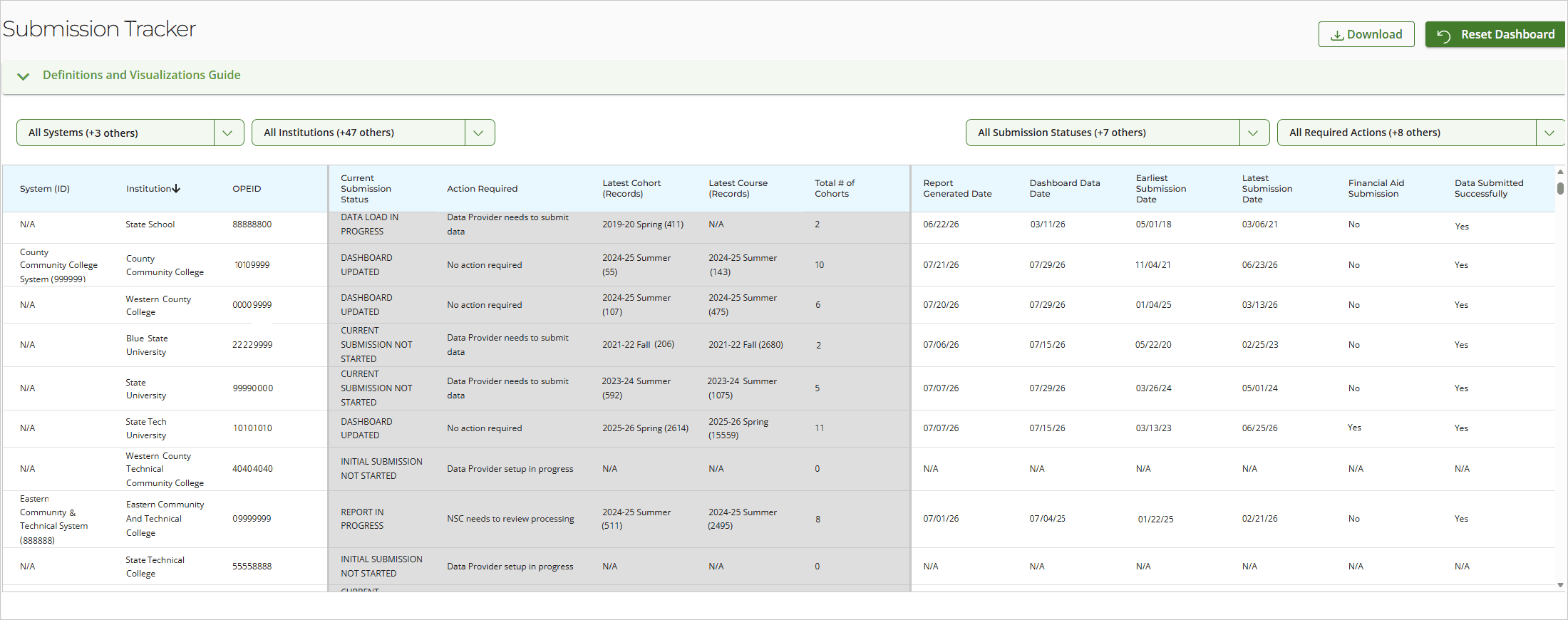
The Postsecondary Data Partnership (PDP) Submission Tracker displays a summary status of submitted data, reports, and PDP dashboards for an institution, system of institutions (SOI) or education organization. You can only view information about the institutions to which you have access. Each institution’s information is displayed on one row.
You can use the Submission Tracker to view the statuses of an institution’s data submissions, some information about the data files submitted for the institution to date, and relevant dates for data submission, analysis-ready files, and dashboards.
You can only view information about the institutions to which you have access. Each institution’s information is displayed on one row.
- Data Submissions: The Submission Tracker provides a summary of the PDP data that has been submitted for the institution(s) and identifies any actions the data provider or the Clearinghouse needs to take. This information includes data submitted directly by an institution or by an SOI on behalf of an institution.
- Analysis-Ready (AR) Files and Dashboards: The Submission Tracker shows when the PDP last generated analysis-ready files for the institution(s) and refreshed the data in the PDP dashboards.
Key Terms
- Data Provider: A user who submits data to the PDP. The user may represent an institution or SOI. Other users, such as third parties, may be able to view information on the Submission Tracker but not submit data files to the PDP.
- Intake and Report Processes: After the data provider submits data, the PDP runs the data through these processes, which include validating the data, running quality checks, generating and sending analysis-ready files, and refreshing the data on the PDP dashboards.
- Value: The information populated for an institution in a column on the Submission Tracker.
Columns
All columns are sortable, but only one can be sorted at a time.
System (ID)
If the institution is part of an SOI, this column will display the name of the SOI. If the institution is not part of an SOI, the value in this column will be “N/A.”
Institution
The individual institution name.
OPEID
The OPEID of the individual institution. The PDP uses OPEID, not IPEDS ID, for data tracking and reporting.
Current Submission Status
Indicates where the institution is in the PDP intake and report processes. Data providers should review this information along with the Action Required column.
Values
- INITIAL SUBMISSION NOT STARTED: The institution is a new customer and has not yet submitted any data to the PDP. This status may also show if all data has been removed and needs to be resubmitted.
- CURRENT SUBMISSION NOT STARTED: No data has been submitted for the institution for the most recent term(s).
- DATA LOAD IN PROGRESS: Cohort and/or course data has been submitted for the institution, but the PDP has not fully processed the data. The Action Required column will show if there are any issues with the data or actions the data provider needs to take. If there are no issues or actions required, the data load process will continue.
- DATA LOAD COMPLETE: The PDP has loaded the latest cohort and/or course data successfully and is ready to generate the analysis-ready files.
- REPORT IN PROGRESS: The PDP is currently generating the analysis-ready files. If there are any issues or actions the data provider needs to take, they will appear in the Action Required column.
- REPORT COMPLETE: The PDP has generated the analysis-ready files and will refresh the dashboards after a three- to five-day waiting period. This period gives the data provider time to review the files.
- DASHBOARD UPDATED: The PDP has refreshed the dashboards, and no new data has been submitted for the institution.
Action Required
Indicates whether there are any actions the data provider or the Clearinghouse needs to take. The data provider can complete many of the required actions through the PDP secure portal or submit/replace data files through their secure FTP site.
Values
- No action required: Either the intake and report processes are currently running without issue, or they have completed for the most recently submitted data or effective date.
- Data Provider setup in progress: The institution is a new customer that requires additional setup, and initial data has not yet been submitted. This action status may also show if all data has been removed and needs to be resubmitted. It may also show if all files submitted have had structural errors.
- Data Provider needs to submit data: Cohort and/or course data has not been submitted for the institution for the most recent term(s). This value will appear if only cohort data or only course data has been submitted. It may also show if all most recently submitted files have had structural errors.
- Data Provider needs to review/resubmit data: The cohort and/or course data submitted did not pass basic structural and field validations. The data provider should review the validation errors and correct any issues before resubmitting the data. Files with errors must be rejected and resubmitted.
- Data Provider needs to resubmit data: The data provider has rejected all data they have submitted, and the PDP will not continue processing the data.
- Data Provider needs to review and finalize submission: The data provider has submitted files successfully but has not yet finalized the submission. The data provider should review the submission and finalize the submission if all files have been uploaded and no changes are needed. This status may show if one or more data submissions have been finalized but other open (non-finalized) submission packages exist. The data provider should cancel any unneeded submissions.
- NSC needs to review processing: A system error or delay occurred during report processing, and the Clearinghouse must investigate and resolve the issue, usually by restarting the process. The PDP will also run audit checks to confirm the data processed successfully. If errors or warnings occur, the Clearinghouse will review the data before sending the analysis-ready files.
- NSC needs to generate report: The PDP has successfully loaded new data and is ready to generate the analysis-ready files.
- NSC needs to refresh dashboards: The PDP has successfully generated analysis-ready files. After a waiting period of three to five days, the PDP will refresh the dashboards. The waiting period allows time for the data provider to review the analysis-ready files.
Latest Cohort (Records)
The most recent cohort year and term for which data has been submitted for the institution and the number of records for the most recent term during that year. For example, “2024-25 Summer (158).”
The latest cohort data may not be fully processed.
Latest Course (Records)
The most recent course/academic year and term for which data has been submitted for the institution and the number of records for the most recent term during that year. For example, “2024-25 Summer (3541).”
The latest course data may not be fully processed.
Total # of Cohorts
The total number of cohort years for which data has been submitted for the institution, including partial years (e.g. if the data provider submitted data for the fall term but not for spring or summer). The PDP dashboards are limited to a certain number of cohort years (usually the most recent eight complete years).
Not all cohorts may be fully processed.
Report Generated Date
The most recent date that the PDP generated analysis-ready files for the institution. If the institution is a new customer, the value in this column will be “N/A.” If the institution is a continuing customer, this column will be populated even if the Current Submission Status column indicates that new data needs to be submitted or another intake or report process is in progress.
Dashboard Data Date
The most recent date that the PDP refreshed the dashboards for the institution. If the institution is a new customer, the value in this column will be “N/A.” If the institution is a continuing customer, this column will be populated even if the Current Submission Status column indicates that new data needs to be submitted or another intake or report process is in progress.
Earliest Submission Date
The earliest date data was submitted for the institution, regardless of whether it processed successfully. For newer data providers, if all files submitted have had structural errors, this will show as “N/A.”
Latest Submission Date
The most recent date that data was submitted for the institution.
Financial Aid Submission
Indicates whether financial aid data has ever been submitted for the institution.
Data Submitted Successfully
Indicates if at least one cohort and one course data file have been submitted for the institution and the data has passed data quality checks.
Filters
Use the dropdown filters to narrow the data by SOI, institution, status, or required action. Filter values are limited for individual institutions. Filters are not labeled, but appear in the below order from left to right on the dashboard:
- System: Educational organizations can use this option to filter the information by SOI name and ID.
- Institution: Educational organizations and SOIs can use this option to filter the information by the name and ID of an individual institution.
- Submission Status: Filters the information by the value in the Current Submission Status column.
- Required Action: Filters the information by the value in the Action Required column.
Download and Reset Dashboard buttons
Download and Reset Dashboard buttons appear at the top right of the dashboard. Use the Download button to export the data to a .csv file. If opening in Excel, make sure to select “Don’t Convert” when prompted to remove leading zeros. Use the Reset Dashboard button to reset the dashboard to default settings. This removes any filters or sorting that had been applied.
Was this resource helpful?