
Setting Up Multi-Factor Authentication (MFA)
1. Once multi-factor authentication (MFA) has been enabled, you will be prompted to set up multi-factor authentication upon login to the National Student Clearinghouse secure site. You must set up at least one MFA option to complete account setup and access Clearinghouse services. To learn more, read the MFA FAQs below.
The available MFA options include:
- Google Authenticator (most secure option)
- SMS Authentication (secure but not as safe as the Google Authenticator)
- Email Authentication (only select as a last resort)
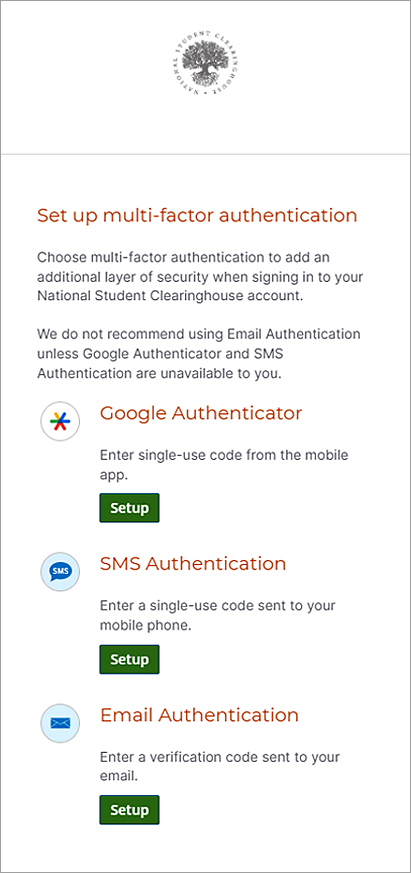
2. Once you choose a multi-factor authentication option, select the “Setup” button under it and follow the onscreen prompts.
If you elect to set up:
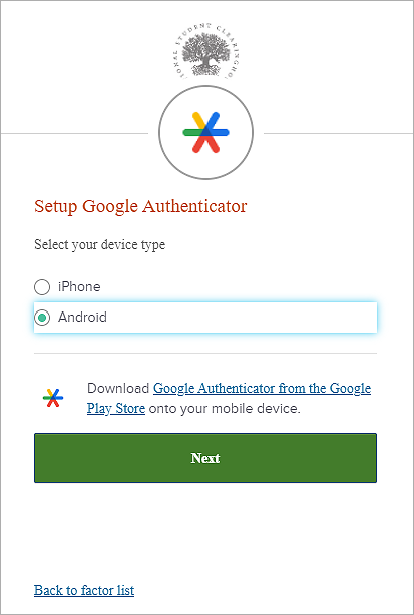
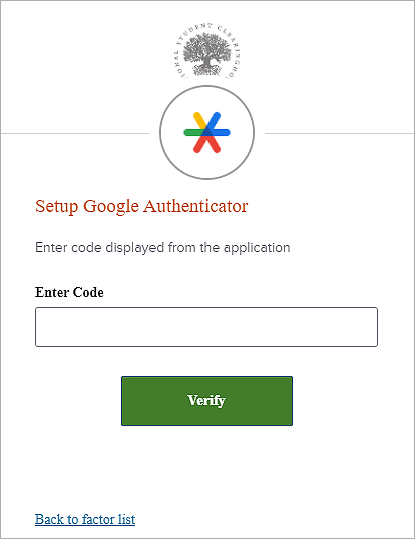
- Google Authenticator: You will be required to download the Google Authenticator mobile application from the Apple App Store or Google Play Store using your mobile device.
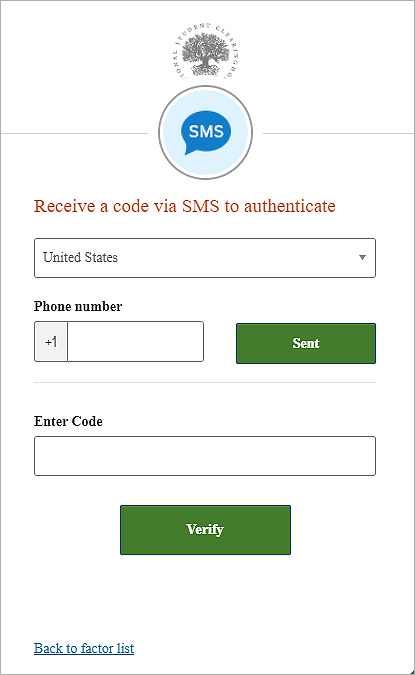
- SMS Authentication: During set up, you will be prompted to provide a mobile phone number capable of receiving SMS text messages. SMS text message fees may apply depending on your mobile plan.
- Email Authentication: Your email address, which you used to log in or register with your account, will be defaulted to receive the two-factor authentication code. This email address cannot be changed. (Use this option as a last resort.)
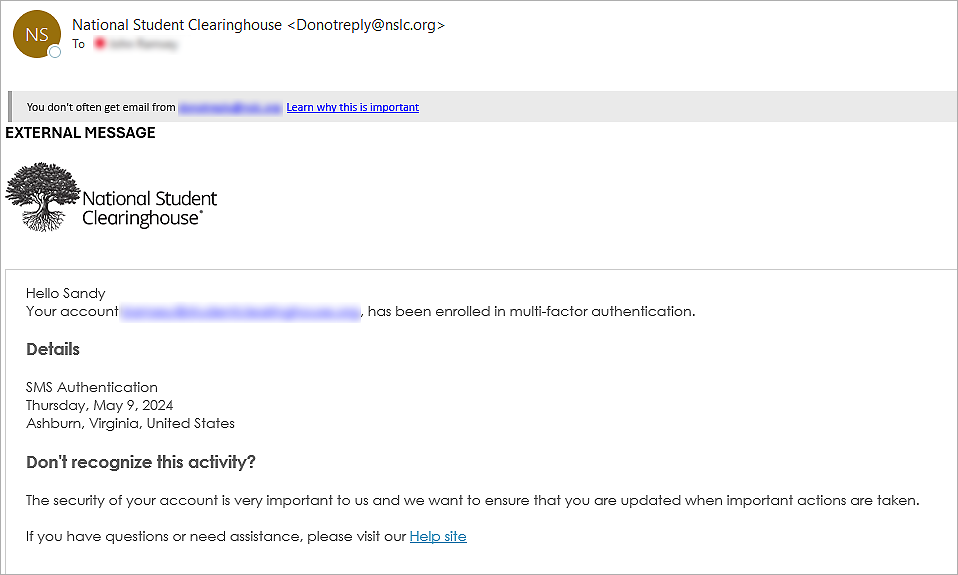
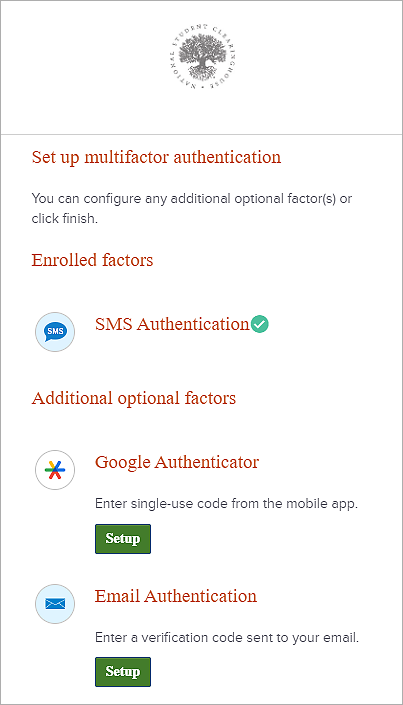
When you set up your MFA, you can also register the device you used as a “trusted device,” so you will not have to enter an MFA factor for 30 days if you use the same device and browser.
How to Update or Change Your MFA
1. Log in to your National Student Clearinghouse account.
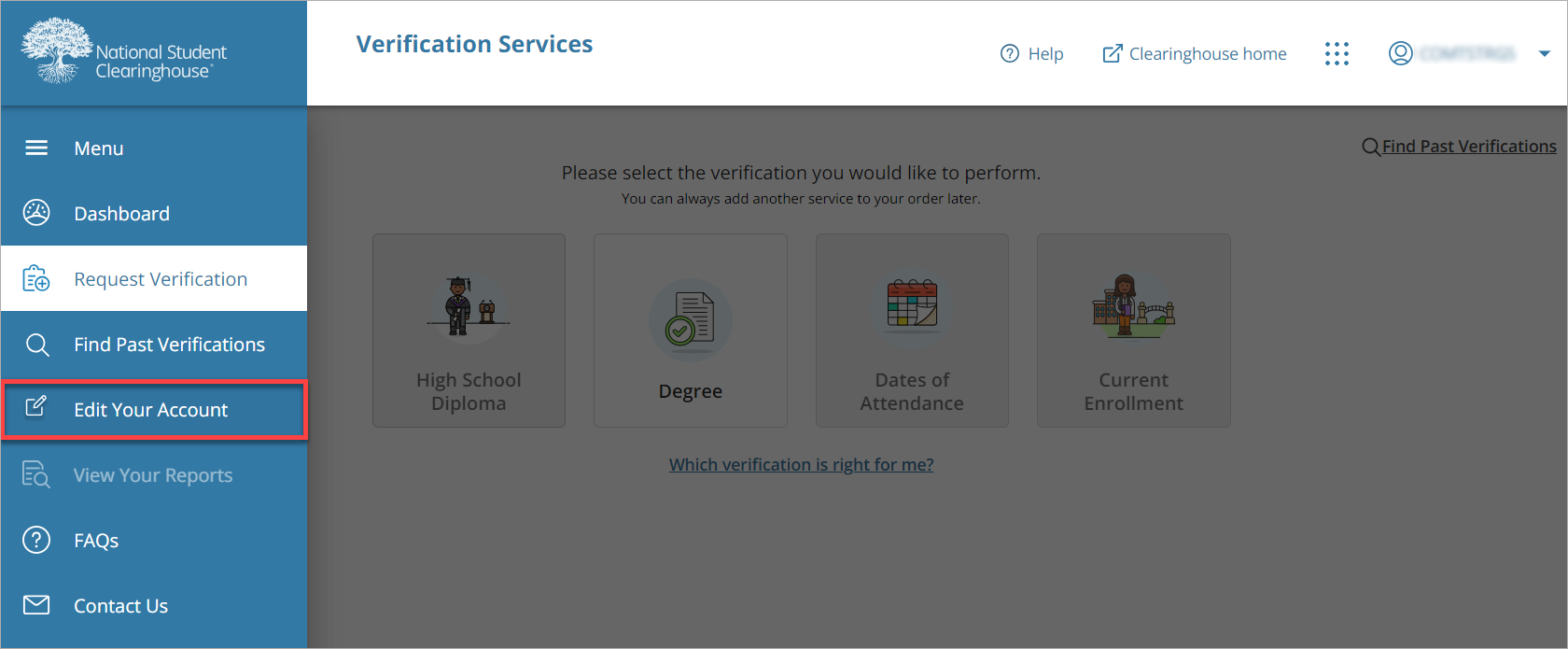
2. Select the “Edit Your Account” button in the left navigation bar.
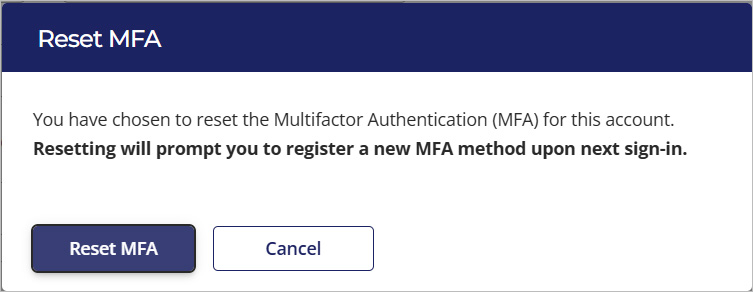
3. Next, select “Reset MFA.”
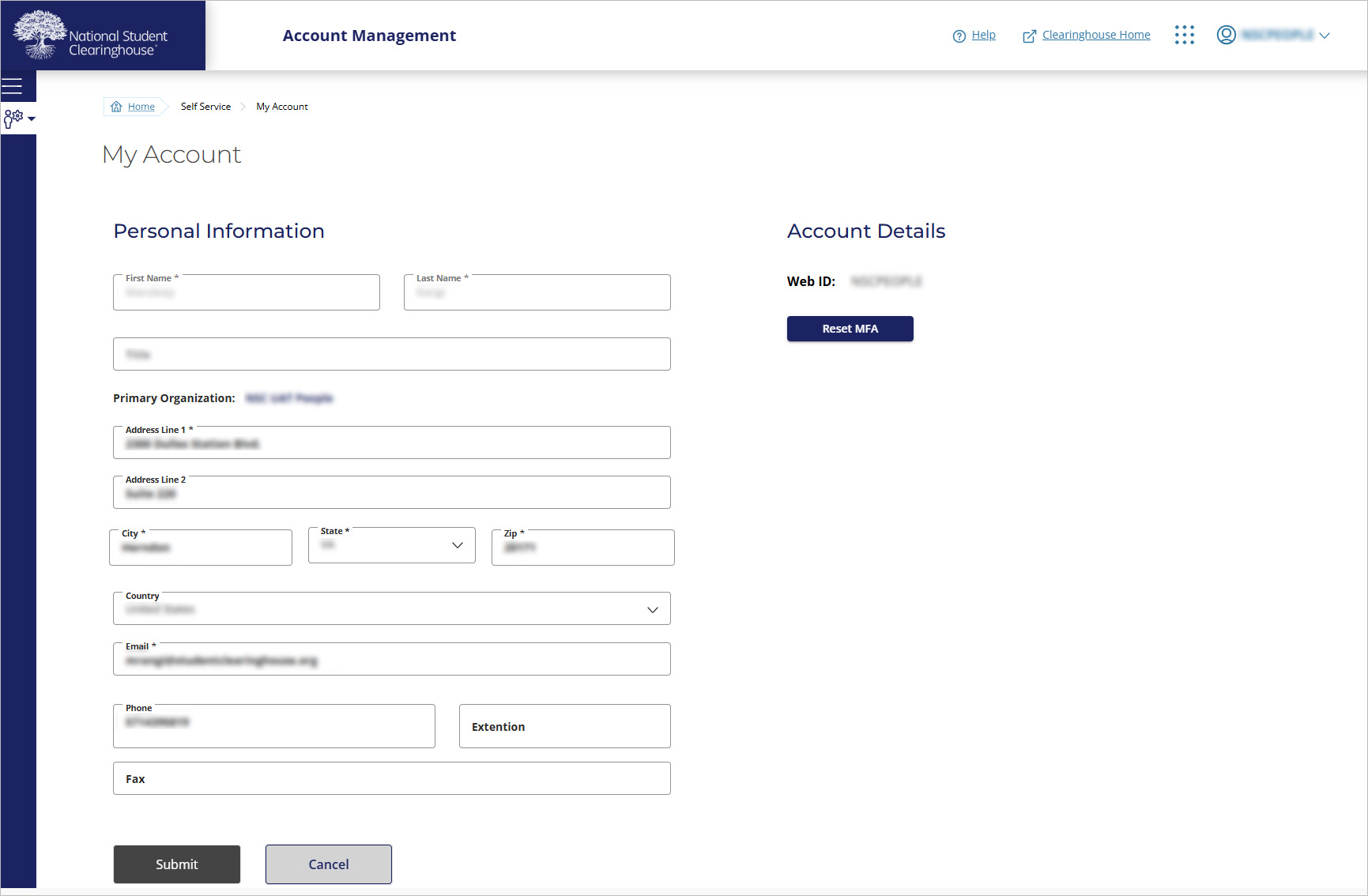
4. Select “Reset MFA” to proceed after reading the disclaimer message. Please read the message carefully and note that you must log out of the account for which MFA is reset. The new MFA option will be presented at the next login.
5. Log out, then log in again.
6. You will be prompted to set up your MFA.
MFA FAQs
What is multi-factor authentication (MFA)?
It is an authentication method that adds an additional layer of security to users for accessing National Student Clearinghouse services. In addition to using a username and password, MFA prompts the user to enter a security code generated and sent to them based on the MFA option(s) they choose.
Why use MFA?
MFA is considered 99.9% effective against blocking automated cyberattacks. The Clearinghouse is adding layers of security to protect your data.
Which MFA factor should I choose? Which is the most secure?
The Google Authenticator app is the most secure option to safeguard your data. SMS texts are considered 40.8% less effective than an authenticator app. However, if you are unable to use the Google Authenticator app, using SMS as your MFA factor is better than having no MFA at all. Email is considered the least secure method of the three MFA factors.
I have an API connection. Do I need to implement MFA for the connection?
No, API connections do not require MFA.
How often will I get prompted for MFA?
Once you register the device that you used to access the site, you can select it as a “trusted device.” Once selected, you will not have to enter an MFA factor for 30 days if you use the same device and browser. If you use a different device or a different browser on the same device, you will be prompted to use your MFA factor before you can access our secure site.
What happens if I use Incognito/Private Mode on my browser?
Any browser in Incognito/Private mode will register as a new device and will always require an MFA factor before allowing access.
Should a shared email address be used as an MFA factor?
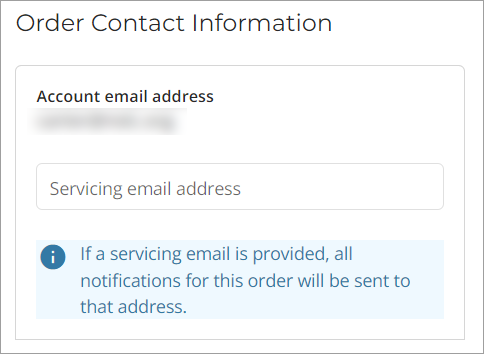
No, we recommend using your work email address if you can’t use Google Authenticator or SMS as your factor. If you need service or order-related notifications sent to a shared or group email, you can specify this on the order confirmation page of your verification request.
How do I log on if I lost my phone and it is required for my MFA factor?
You have two options:
- Self-service: If you are within 30 days of registering your MFA and use a trusted device, you can still access “My Account,” where you can click “Reset Multi-Factor” to reset your second factor to your new phone or an alternative Google Authenticator app.
- Contact your institution’s user administrator: Your user administrator can reset your second factor for you by following a process like the self-service one above.