
Step 1: Create an account
- Go to www.degreeverify.org.
- Before creating your profile, we recommend downloading the participating schools list(s) for the type of verification you plan to perform to confirm that your desired school participates. This is especially important for diploma verifications where our coverage of schools is limited and still growing.
- Click the “Verify Now” button. You will be guided through a registration process to create a profile, authenticate yourself, and make verification requests.

- Select “I’m submitting a verification request for myself.”
- Click “Next.”
- Select “Create a New Account” or click “Sign in using Google” or “Sign in using LinkedIn“ to create an account using your information from one of those platforms.
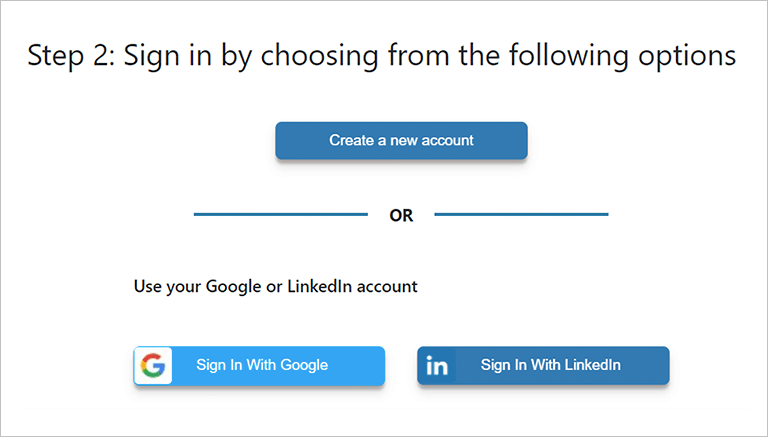
- If you choose to sign in using your Google or LinkedIn account, enter your account credentials to continue. Next, you’ll be prompted to set up your multi-factor authentication (MFA), see Multi-Factor Authentication (MFA) support.
- Enter the required information to create your account.
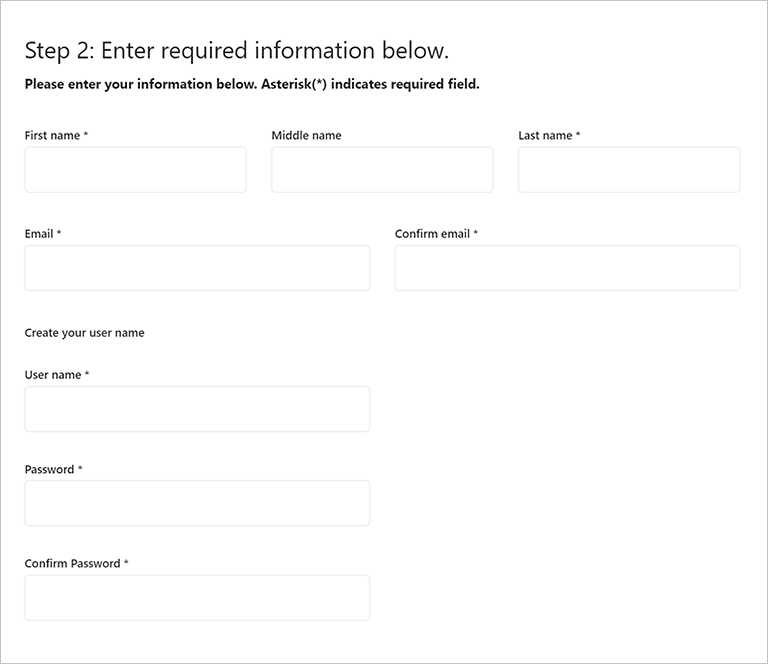
- Click “Next” to create your account and return to the login page.
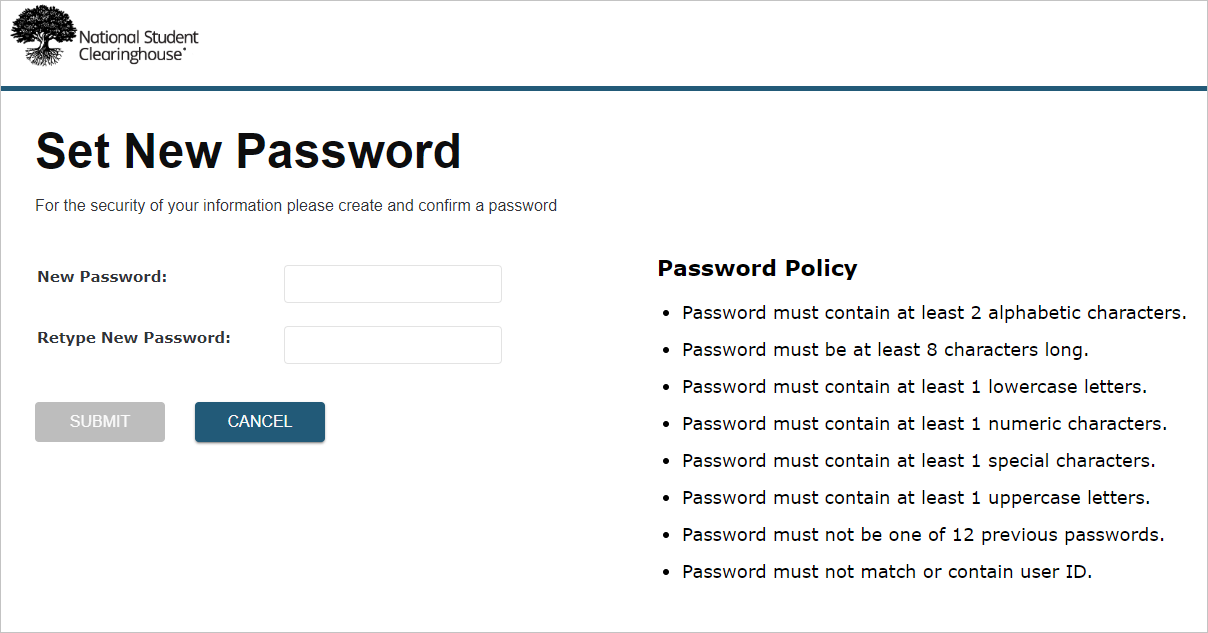
- Log in with your new user name and password.
- Create your password recovery question and answer.
Step 2: Set up Multi-Factor Authentication (MFA)
For steps to set up or update your MFA, please see Multi-Factor Authentication (MFA) support.
Step 3: Enter your identity information
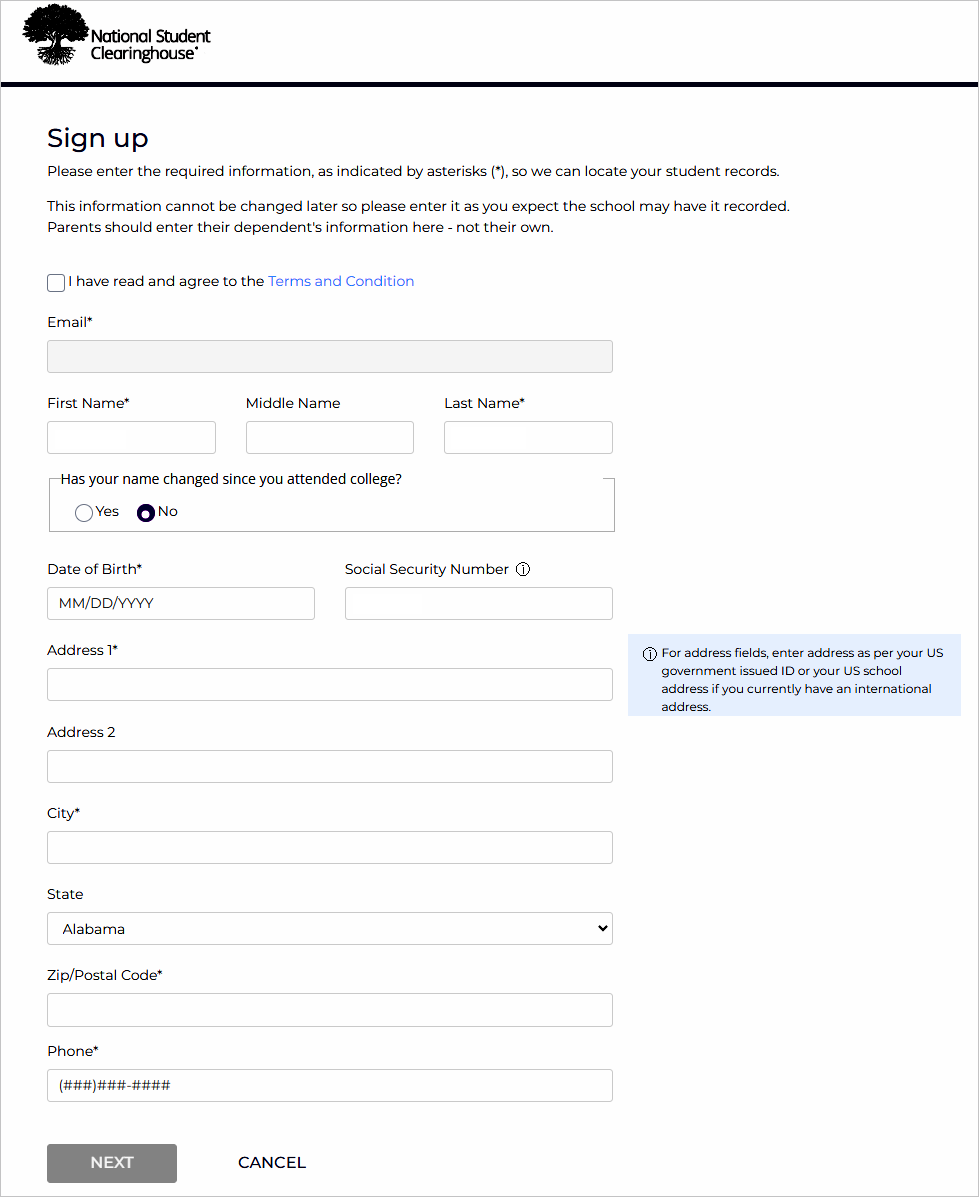
- Enter your personal information or the information of your depending child/minor. Please include any previous or former names you used while in school.
Note: We will use this information for authentication purposes and all your verification requests. You cannot change this information after registering.
- If we were able to authenticate you without requiring additional questions, you can proceed to “Requesting a Verification.” If you are prompted to complete the document upload process, go to “Uploading Documents” below. Otherwise, continue to the next step.
- Click “Next”
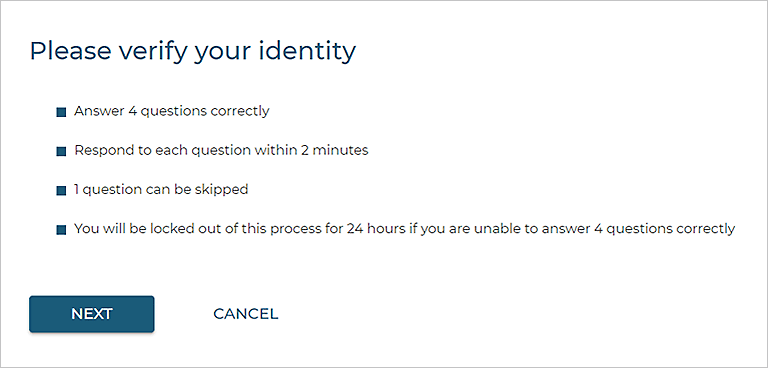
- Answer each question to continue.
- If you successfully answered enough questions, you will be considered authenticated and can continue.
- If you did not answer enough questions correctly, you can retry after 24 hours.
Uploading Documents
- Click “Continue” to begin the document upload process.
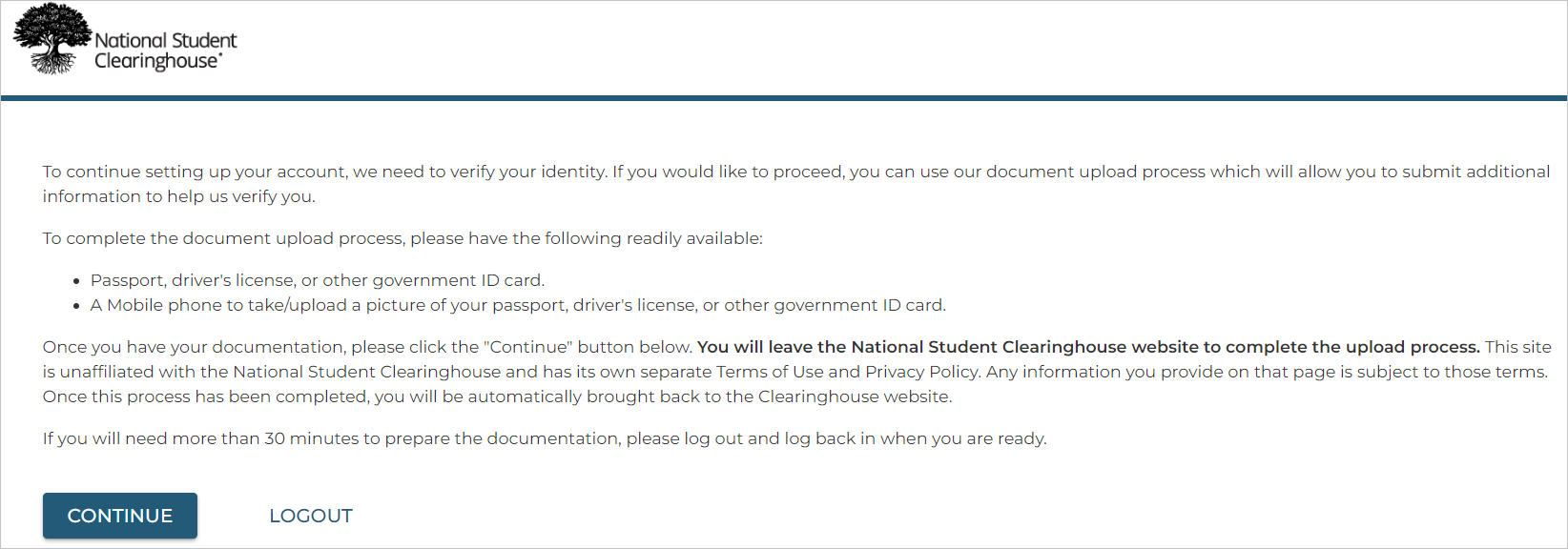
Note: This process will require you to leave the Clearinghouse website.
- Click “Continue on Mobile Device” to link your device.

- You will be presented with two options to verify your identify using your mobile device: a QR code that can be scanned using your phone’s camera OR a link that can be copied and sent to your phone via email.
- Upon successful transfer to your mobile device, you will see a splash screen confirming the transfer.
- Follow the instructions on your mobile device to capture photos of your identification and a selfie to verify your identity.
- Complete these three steps:
- Select your country (the default is USA)
- Add your ID
- Take a selfie
- To select a country other than the United States, tap the “Select Your Country” box and choose your country from the dropdown list.
- To upload images of your ID, tap “Add Your ID” and select your form of identification.
- Tap “Next Step.”
Note: You may need to capture images of both the front and back of your ID, depending on which form of identification you provide.
- Place the document on a dark flat surface in a well-lit room.
- Position the camera directly over the document (not angled) and avoid glare.
- Fill the screen but let the background surface border all corners of the document.
- Tap “Capture.”
- Allow access to your camera if you are prompted to do so.
- Follow the on-screen instructions to align your document. The system will automatically take the picture when your document is aligned.
- Review the picture and re-take it if necessary.
- Capture the back of the document, if required.
- Tap “Take a Selfie.”
- Tap “Start Camera.”
- Capture a photo of yourself.
- Review your photo and re-take it, if necessary.
- Tap “VERIFY ME” to submit your documents. Once you see the confirmation page, you can switch back to your PC (if applicable) to complete the remaining process and, if approved, proceed with the verification request.
- If we were unable to verify your identity with your documentation, you can try again after 24 hours.
- After three unsuccessful attempts to verify your identity, we will lock your account, and you will need to contact the school directly to access your records.
Step 4: Request a verification

- Select the type(s) of verification: “High School Diploma,” Degree or School Certificate,” “Current Enrollment,” and/or “Dates of Attendance.”
- Select the “School” from which you would like the verification (for high school diploma verifications, first select “State,” then “School.”
- Review your order details and enter an optional “Reference ID,” if you choose.
Note: You cannot edit certain identity information fields because you are only permitted to verify yourself.
4. Click “Submit Order.”