
- Go to www.degreeverify.org.
- Before creating your profile, please ensure you have your company’s Tax ID (also referred to as EIN (Employer Identification Number), or “Business registration number” on hand as this is required to create a profile. We also recommend downloading the participating schools list(s) for the type of verification you plan to perform to confirm that your desired school participates. This is especially important for diploma verifications where our coverage of schools is limited but growing.
- Click the “Verify Now” button and complete the registration process to create a profile and submit it for our review. If your registration is not approved immediately, it may need to be manually reviewed, which can take 1-3 business days to complete. Please note that inaccurate company or personal information will cause additional delays. You will receive an email indicating the result of the review. If approved, you will be able to make verification requests on behalf of your company. See our FAQs to learn more about this process.

- Select “I’m submitting a verification request on behalf of a company.”
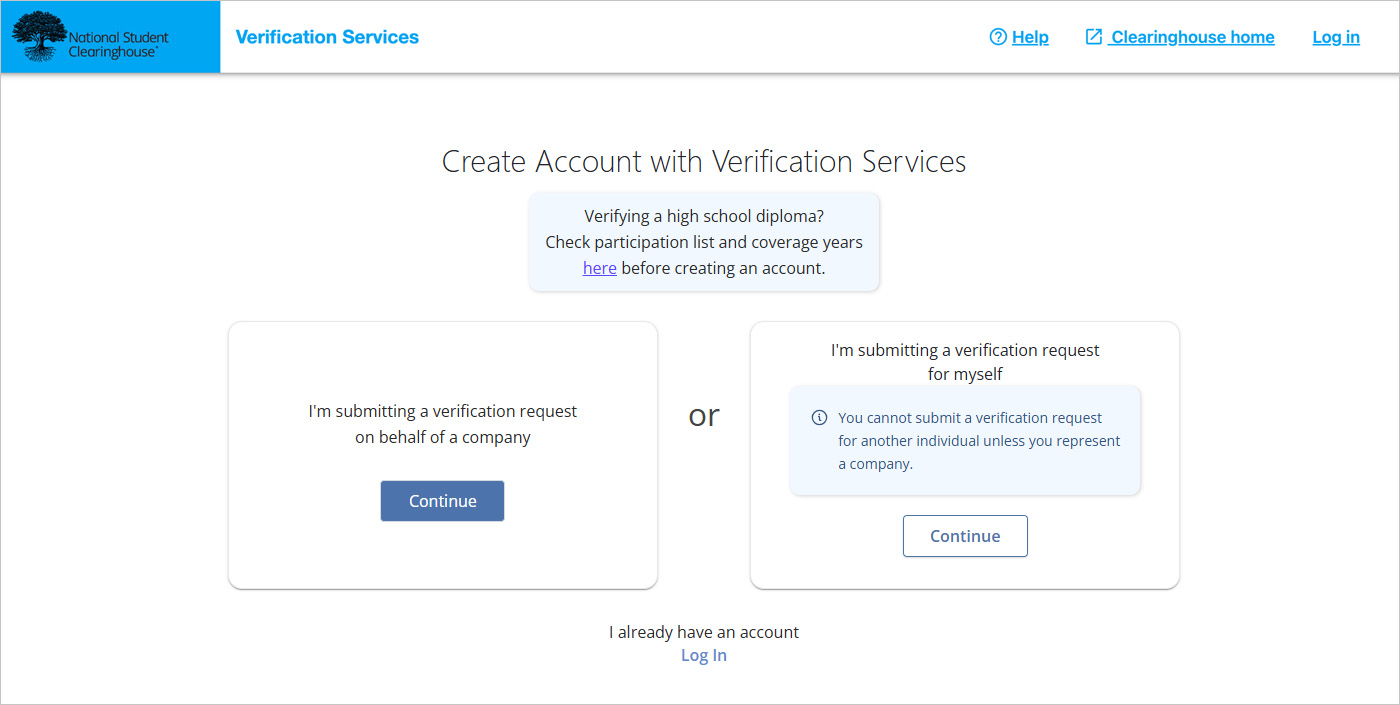
- Click “Continue.”
- Enter the required information about yourself and your company, including your company’s Tax ID. Please note that the user name you choose may be modified if your registration is approved and the username is already taken. You will receive an email including this information, if approved.
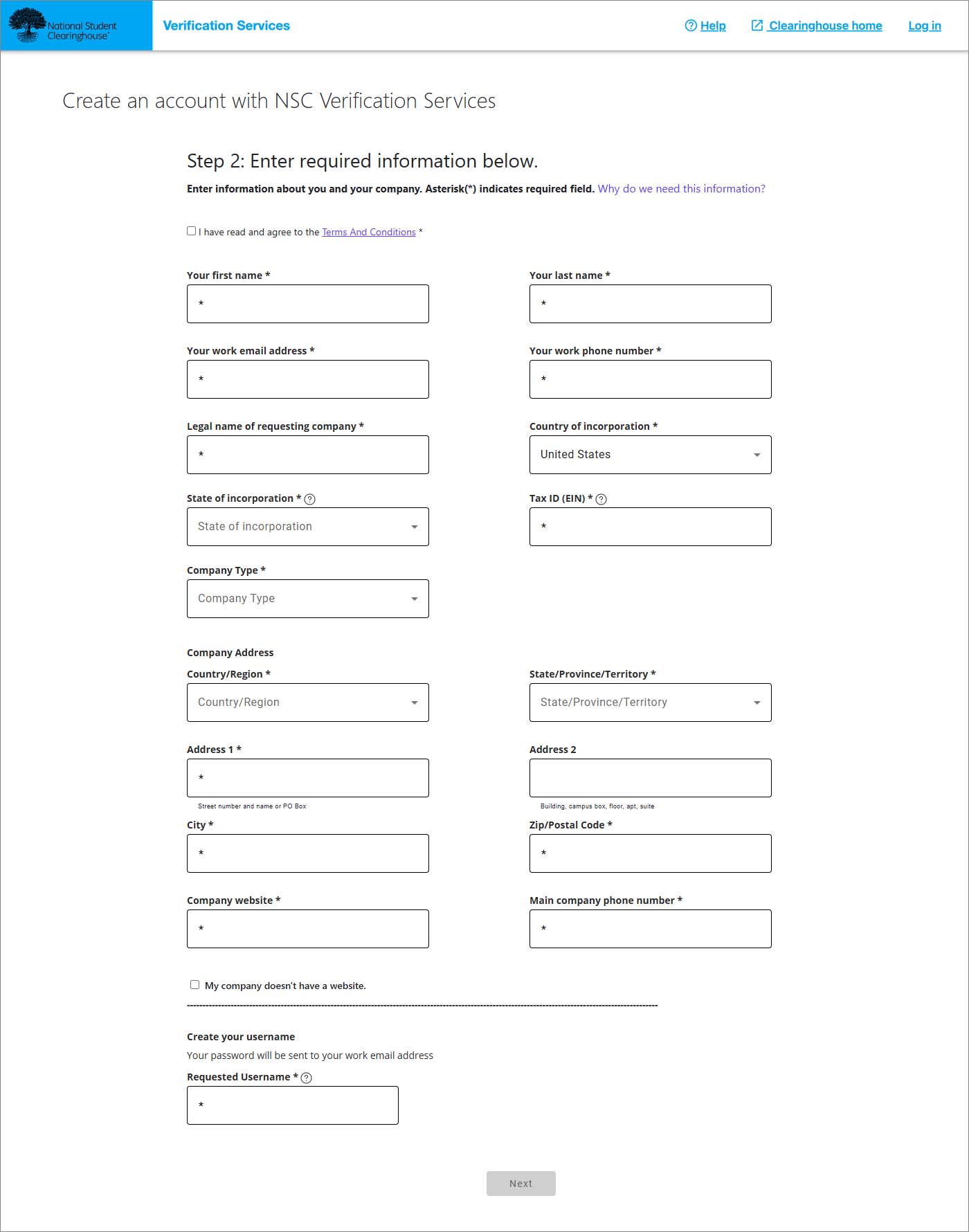
- Click “Next.”
- After entering the required information, you will receive one of the following four responses.
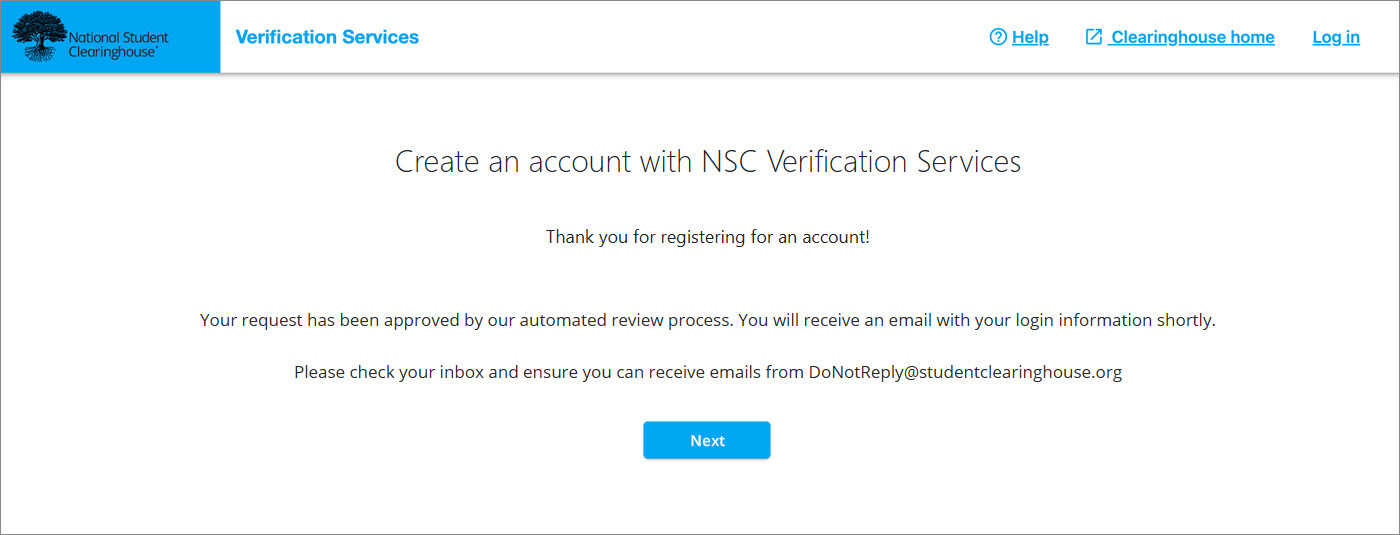
- If your registration request was automatically approved, the screen below will display. You will be sent a welcome email containing a link to complete your registration.
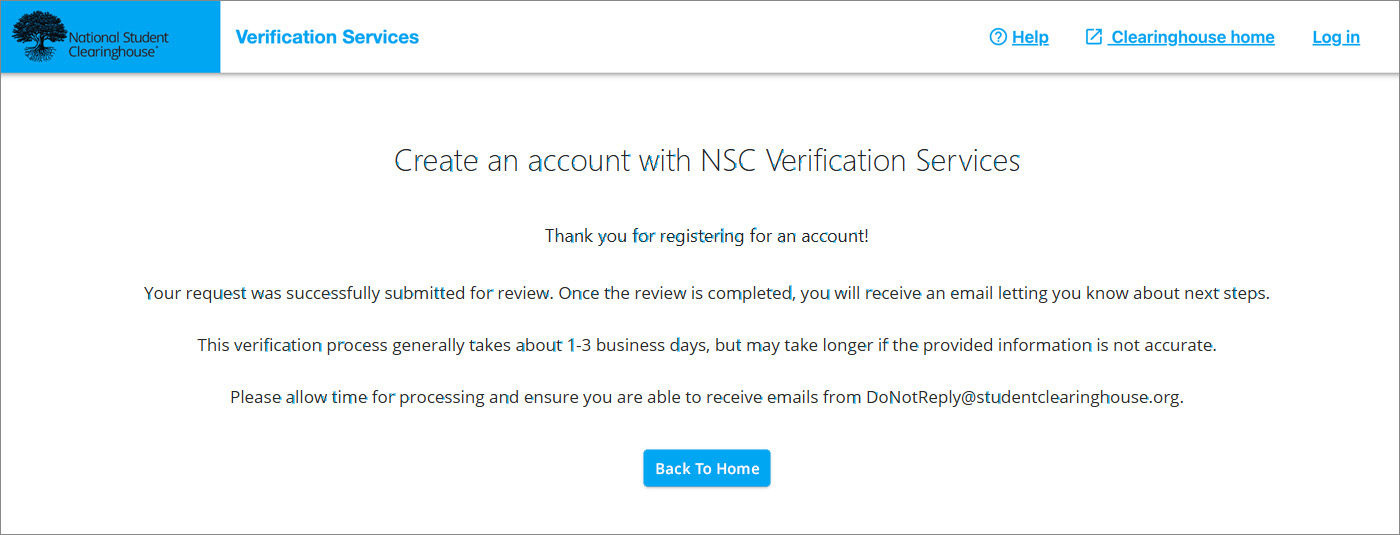
- If your registration was submitted for manual review, the screen below will display. Once the manual review is complete, which can take 1-3 business days, you will receive an email with the result.
- If we can’t verify your registration, you’ll see a message with a link to contact our support team for help.
- If we find a duplicate account, follow the instructions on the screen to log in or reset your password.
See our FAQs to learn more about this process.
- If your registration is approved, you will receive a welcome email containing a link where you can complete your registration details. Click the link in the email to set your password
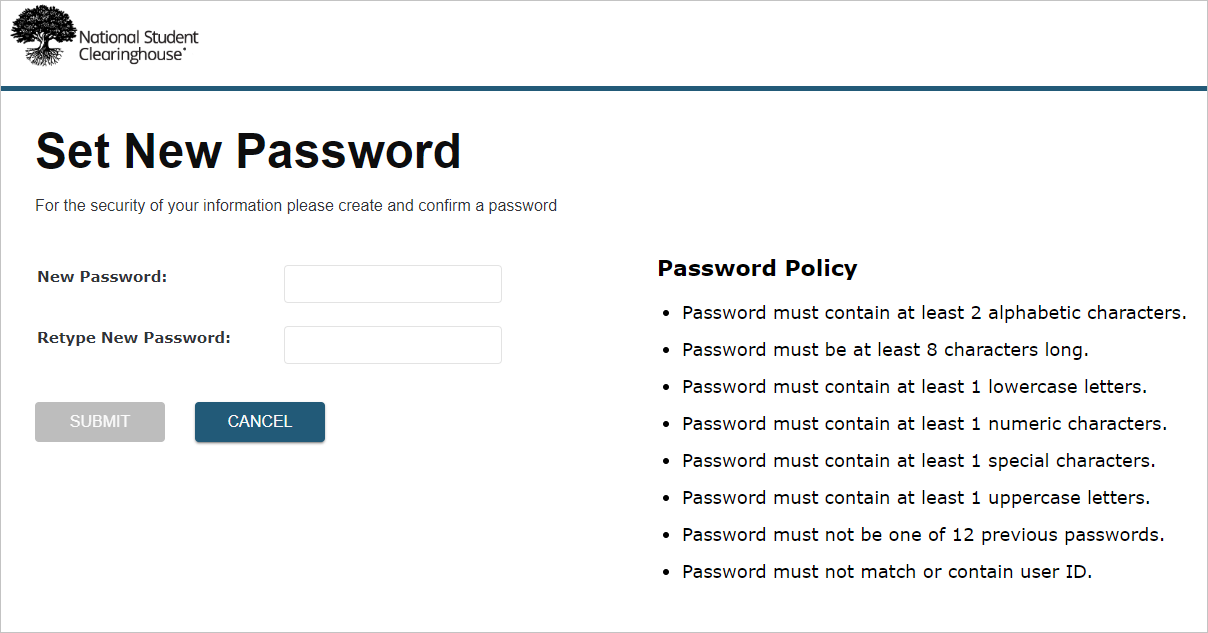
- Login using the user name and password you created.

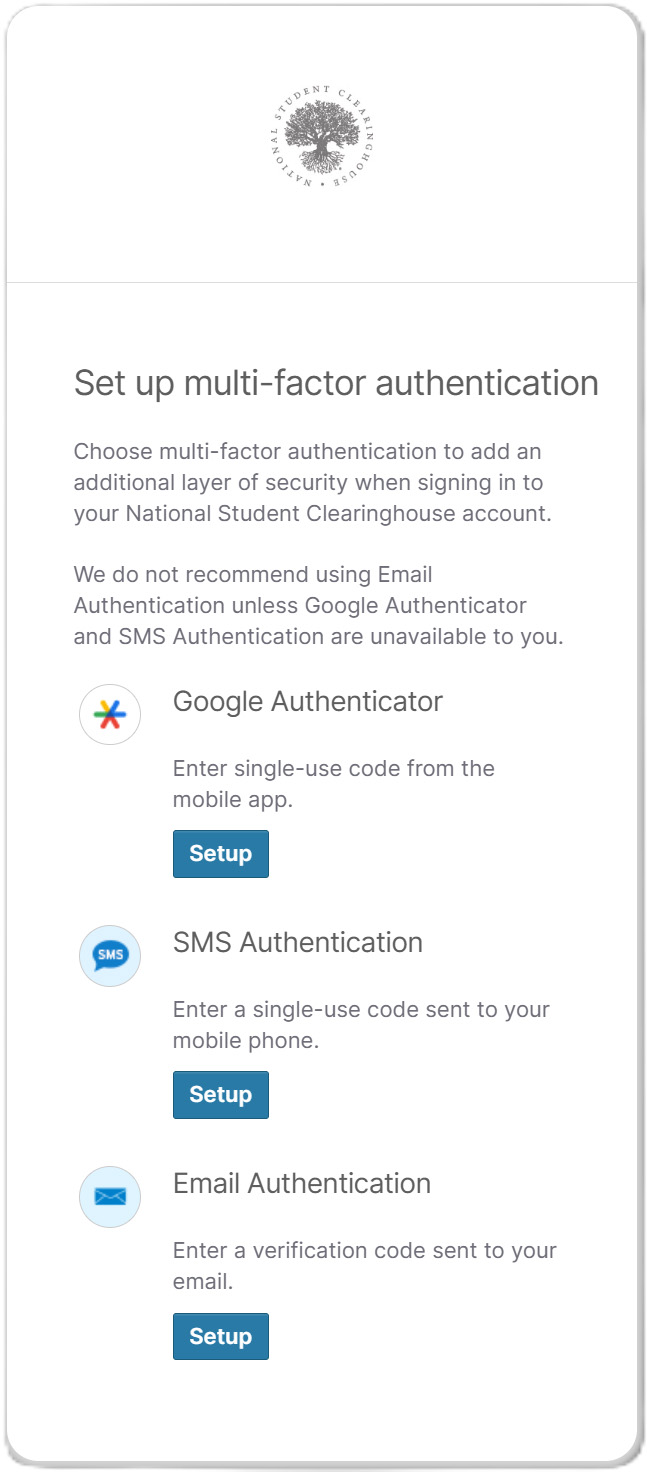
- Set up at least one multi-factor authentication (MFA) type.
- Set up a password recovery question and answer to help you reset your password if you forget it.
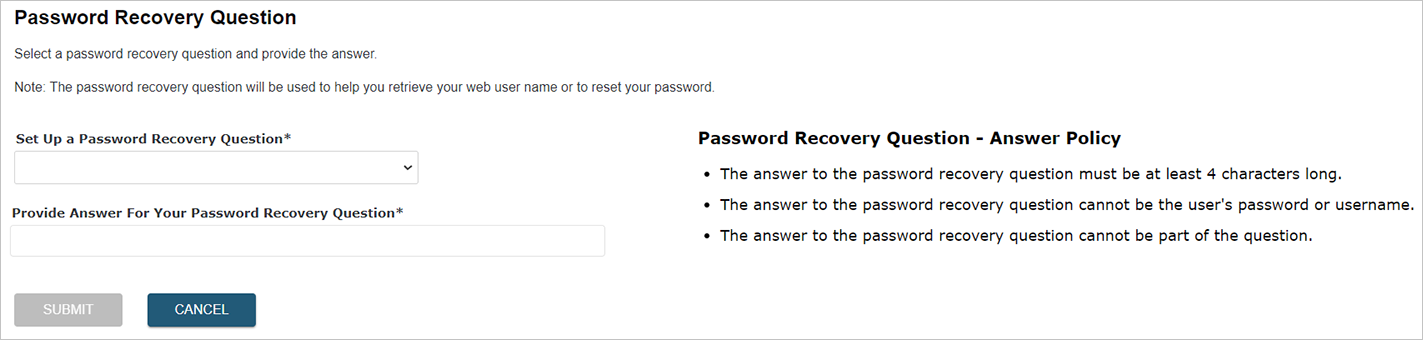
- After creating your password recovery question and answer, you will be taken to the verification landing page.