
About Request Files
Request Files allow you to create custom cohort reports and confirm postsecondary enrollment and graduation of your non-graduate students. You can better track the postsecondary accomplishments of transfers, students who earned GEDs, and others by providing the last date the student was enrolled at your institution as the search date. You can also track non-graduates, who are not included in your Graduate File submissions.
For example, if you wanted to determine where your 2008 and 2009 female students attended school after graduating, could create a Request File for this cohort and submit it to the Clearinghouse for processing. You would then receive Processed Request File reports that confirm the subset of students’ postsecondary enrollment and graduation.
Request Files can be submitted at any time, independent of the Graduate Files you submit, and are not stored in our database.
Formatting a Request File
Request Files must meet specific requirements to reduce errors and additional work.
To download a sample Request File in text format, right-click the icon below and select Save as (Microsoft Edge) or Save link as (Google Chrome, Mozilla Firefox).
Formatting Text Fields
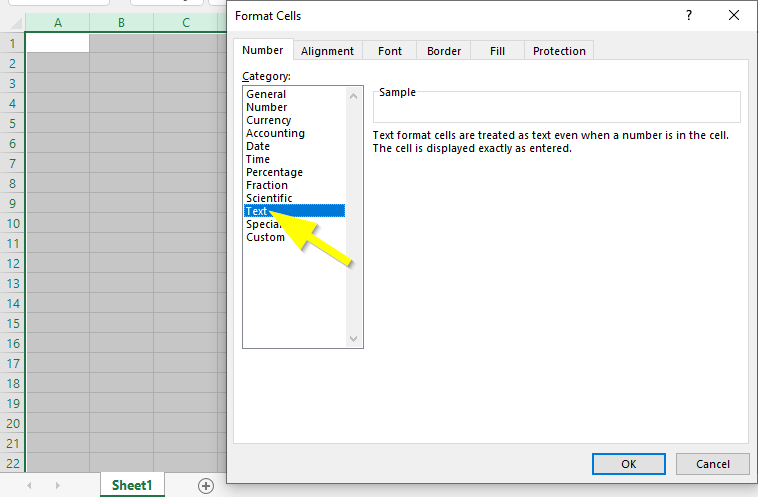
Format all non-date fields as text to ensure that leading zeroes are not removed. You must keep leading zeroes in all numeric fields, including high school ACT codes.
- Create a new Excel spreadsheet.
- Highlight columns A through Y.
- Right-click your selection and click Format Cells.
- Select the Number tab.
- Select Text under Category.
- Click OK.
Formatting Date Fields
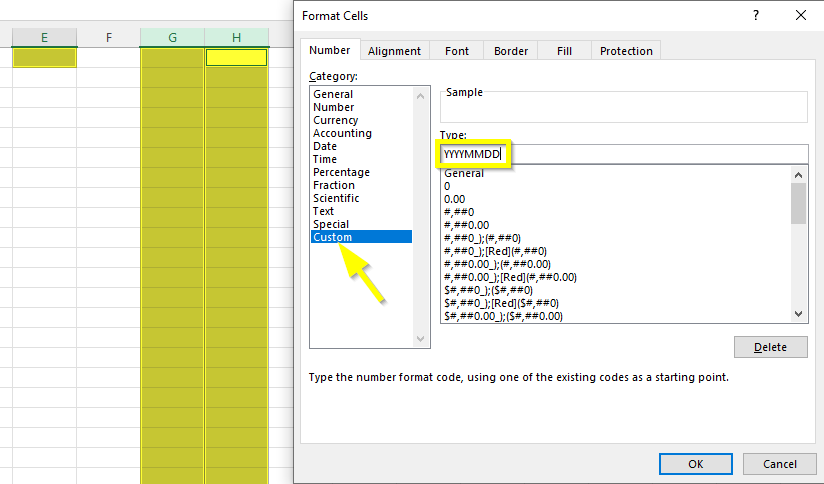
- Format your date fields as YYYYMMDD.
- Create a new Excel spreadsheet.
- Right-click your selection and click Format Cells.
- Select the Number tab.
- Select Custom under Category.
- Enter YYYYMMDD in the Type field.
- Click OK.
Formatting the Header Row
The header row must be the first row in the file.
| Column | Description | Required | Format |
| A | Enter “H3” | Yes | 2 characters |
| B | Your account code (found on your account reference sheet) | Yes | Up to 10 characters |
| C | Leave blank | No | Blank |
| D | Your account name (found on your account reference sheet) | Yes | Up to 80 characters |
| E | File transmission date (date you are sending the file) | Yes | YYYYMMDD |
| F | Enter “SE” | Yes | 2 characters |
| G | Enter “D” | Yes | 1 character |

Formatting the Student Detail Rows
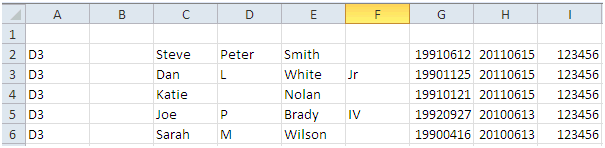
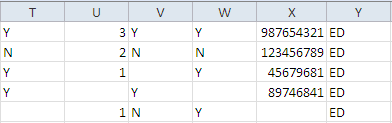
Enter each student’s information in its own row starting at row 2.
| Column | Description | Required | Format |
| A | Enter “D3” | Yes | 2 characters |
| B | Leave blank | No | Blank |
| C | First name | Yes | Up to 40 characters |
| D | Middle name or initial | No | Up to 40 characters, no periods |
| E | Last name | Yes | Up to 40 characters |
| F | Suffix | No | Up to 3 characters, letters only, no numbers or punctuation |
| G | Date of birth | Yes | YYYYMMDD |
| H | Last date of attendance | Yes | YYYYMMDD |
| I | ACT code for the high school from which the student graduated or last attended (found on your account reference sheet) | Yes | 6 characters |
| J | Leave blank | No | Blank |
| K | Requester return field for internal tracking – you can enter any additional ID or tag associated with the student here. | No | Up to 15 characters |
| L | Student ID (assigned by the school or district) | No | Up to 15 characters |
| M | Gender | No | 1 character, valid codes:
|
| N | Ethnicity | No | 2 characters, valid codes:
|
| O | Economically disadvantaged indicator (as dictated by the district or state) | No | 1 character, valid codes:
|
| P | 8th grade state assessment result, math | No | 1 characters, valid codes:
|
| Q | 8th grade state assessment result, ELA/reading | No | 1 character, valid codes:
|
| R | High school assessment result, math | No | 1 character, valid codes:
|
| S | High school assessment result, ELA/reading | No | 1 character, valid codes:
|
| T | English learner or English as a second language (ESL) indicator (as defined by the district or state) | No | 1 character, valid codes:
|
| U | Number of semesters of math completed (non-traditional terms count as long as credit was awarded to the student) | No | Up to 2 characters |
| V | Dual enrollment indicator (student is enrolled in postsecondary and secondary coursework) | No | 1 character, valid codes:
|
| W | Disability code (student is identified by the state as either physically or mentally disabled) | No | 1 character, valid codes:
|
| X | Program code – requester return field for internal tracking of a specific school, district, or state program | No | Up to 50 characters |
| Y | Enter “ED” for all student records | Yes | 2 characters |

Formatting the Trailer Row
The trailer row must be the last row in the spreadsheet.
| Column | Description | Required | Format |
| A | Enter “T3” | Yes | 2 characters |
| B | Enter the Excel row number for the trailer row | Yes | Up to 8 characters |

Saving a Request File
- From the File menu, select Save As.
- Select the location where you would like to save the file.
- Enter a name for the file. It can contain underscores ( _ ) and hyphens ( – ) but cannot contain spaces or any of the following characters: ! @ # $ % ^ & * ( ) + ? / \ ” ‘ : ; ~ ` [ ] { } =
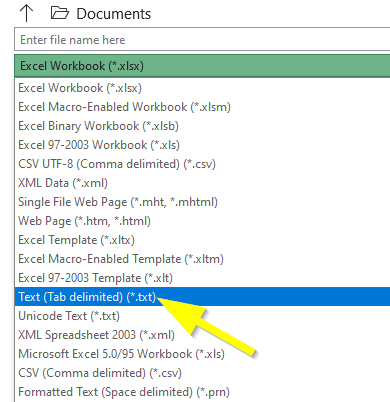
- From the drop-down menu, select Text (Tab delimited) (*.txt).
- Click Save. If a popup window appears, click OK. If another popup window appears, click Yes.
Submitting a Request File
In your browser, navigate to: https://ftps.nslc.org and log into your secure FTP account to submit your file to the Clearinghouse. See our Secure FTP Knowledge Base for more information.
For help, email us at studenttracker@studentclearinghouse.org.