
The National Student Clearinghouse’s FVT/GE reporting solution helps you comply with Financial Value Transparency & Gainful Employment (FVT/GE) requirements. This guide takes you through the steps for reverting sections to “In-Progress” that were completed for the same reporting cycle.
Logging on to the Financial Value Transparency & Gainful Employment Reporting Dashboard
- Log on to your Clearinghouse Account by clicking the “User Login” link at the top of www.studentclearinghouse.org.
- To open the FVT/GE Dashboard, click the “FVT/GE Reporting Dashboard” link on the Student Reporting tab OR the “FVT/GE” tile (or the FVT/GE Reporting button on the left navigation bar) on the Data Reporting Dashboard.
Before You Begin Section: Attest to Qualifying Graduate Programs (QGP)
If your institution has already marked the “Attest to Qualifying Graduate Programs” section as complete and later determines that additional changes need to be made, you can revert the section to in-progress.
To revert the “Attest to Qualifying Graduate Programs” section, go to the “Before you Begin” section of the FVT/GE Reporting Dashboard and expand the “Attest to Qualifying Graduate Programs” tile. Click “View Qualifying Graduate Programs List.”
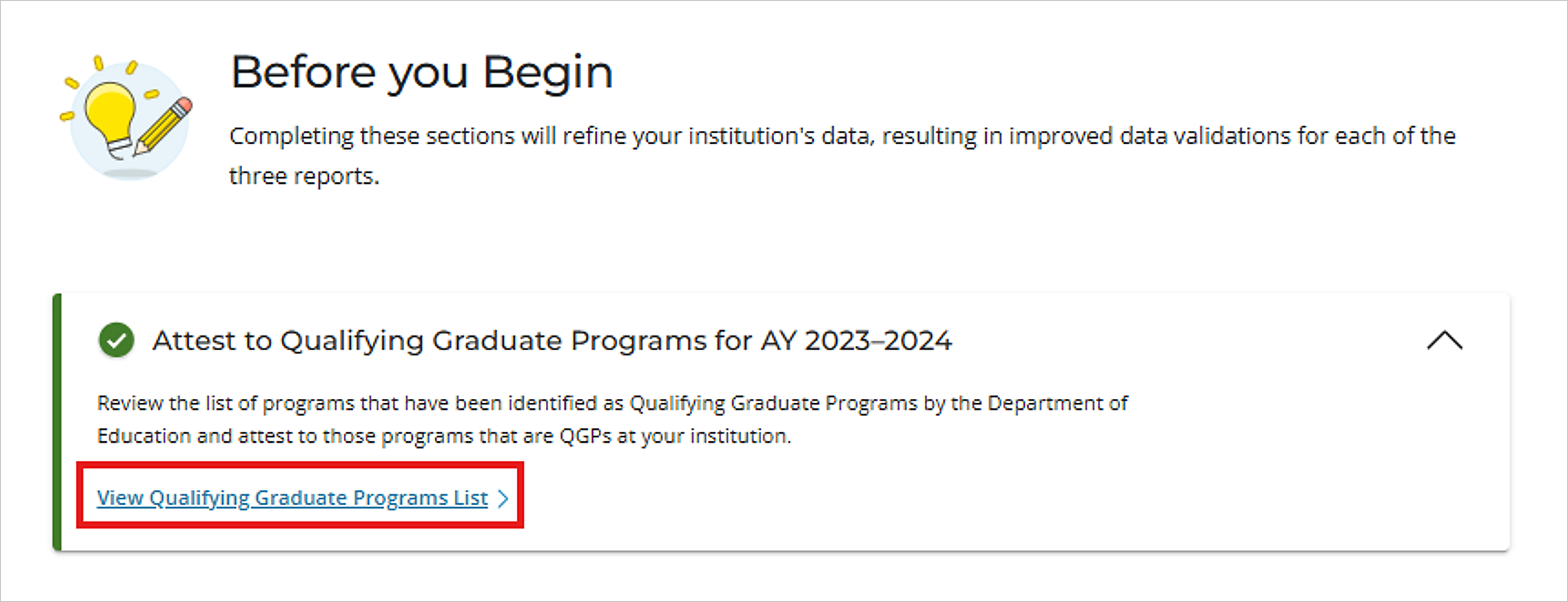
On the next screen, select the “Revert to In-Progress” button.

A window will pop up asking you to confirm that you want to revert the section to “In-Progress.” Click “Confirm” or “Cancel.”

Before You Begin Section: Graduated Status Reconciliation
If your institution marked the “Graduated Status Reconciliation” section as complete and later determines that additional changes need to be made, you can revert the section to in-progress.
To revert the “Graduated Status Reconciliation” section, go to the “Before you Begin” section of the FVT/GE Reporting Dashboard and expand the “Graduated Status Reconciliation” tile. Click “View Student Data.”

On the next screen, select the “Revert Completion Status” button.


If you select “Confirm” and we have Graduated Status Reconciliation – Graduates Only enrollment files in-house for you, a pop-up will display requesting you contact the Clearinghouse for further assistance.

Student Level Report: Changing the Reporting Type
If your institution selected your “Student Level Reporting Type” but later determines it needs to be changed, you can reset the reporting type. The reporting type can be reset if the Student Level Report is “In Progress” or “Completed.”
To reset the reporting type, go to the “Reports” section of the FVT/GE Reporting Dashboard and navigate to the “Student Level Report” tile. Click “Reset Reporting Type.”

A window will pop up asking you to confirm that you want to reset the reporting type. Click “Confirm” or “Cancel.”

Student Level Report: How to Resubmit with Changes
If your institution completed the “Student Level Report” section and later determines that additional changes need to be made, you can reset the section to in-progress.
To reset the “Student Level Report” section, go to the “Reports” section of the FVT/GE Reporting Dashboard and navigate to the “Student Level Report” tile. Click “View Student Level Report.”

On the next screen, select the “Reset SLR to In-Progress” button.

A window will pop up asking you to confirm that you want to reset the Student Level Report. Click “Confirm” or “Cancel.”

Student Level Report: Reverting an Award Year
If your institution completed an “Award Year” file for the Student Level Report, but later determines that additional changes need to be made, you can reset the individual Award Year to in-progress.
To reset the “Award Year” file, go to the “Reports” section of the FVT/GE Reporting Dashboard and navigate to the “Student Level Report” tile. Click “Resume Student Level Report.”

On the next screen, navigate to Step 4, “Data Corrections.”

Scroll down to the “Award Year” file you want to revert and click “Revert AY to In-Progress.”

A window will pop up asking you to confirm that you want to revert the Award Year file. Click “Confirm” or “Cancel.”

Program Level Report: How to Resubmit with Changes
If your institution completed the “Program Level Report” section and later determines that additional changes need to be made, you can reset the section to in-progress.
To reset the “Program Level Report” section, go to the “Reports” section of the FVT/GE Reporting Dashboard and navigate to the “Program Level Report” tile. Click “View Student Level Report.”

On the next screen, select the “Reset PLR to In-Progress” button.

A window will pop up asking you to confirm that you want to reset the Program Level Report. Click “Confirm” or “Cancel.”
