Logging On
1. Go to https://ftps.nslc.org. (You may want to bookmark this site.)
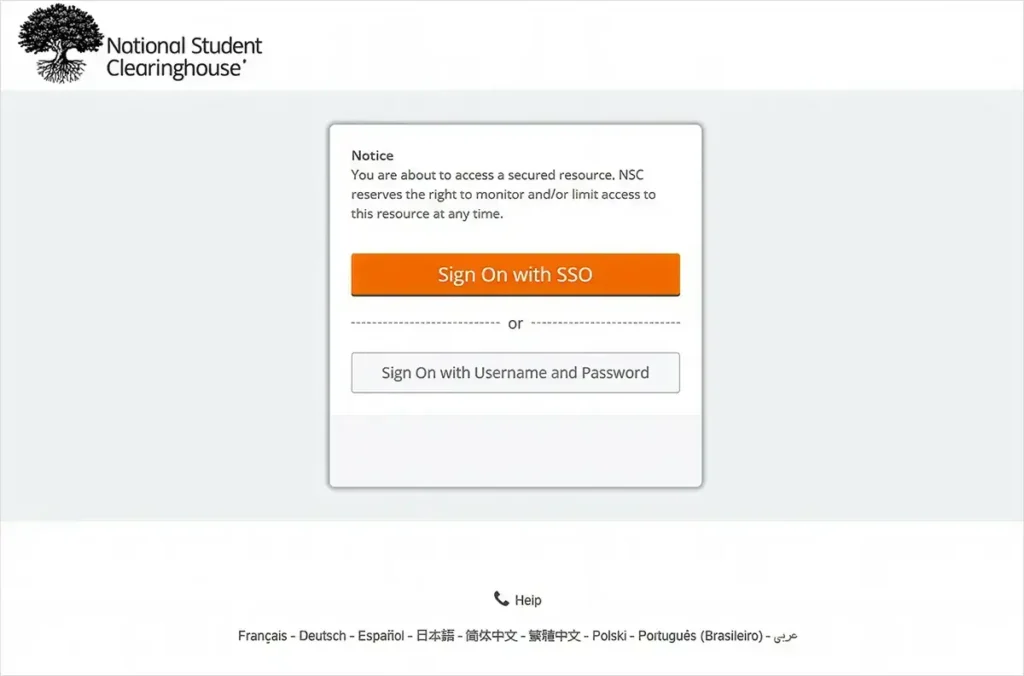
2. Select “Sign On with Username and Password” (the “Sign On with SSO” is not currently available).
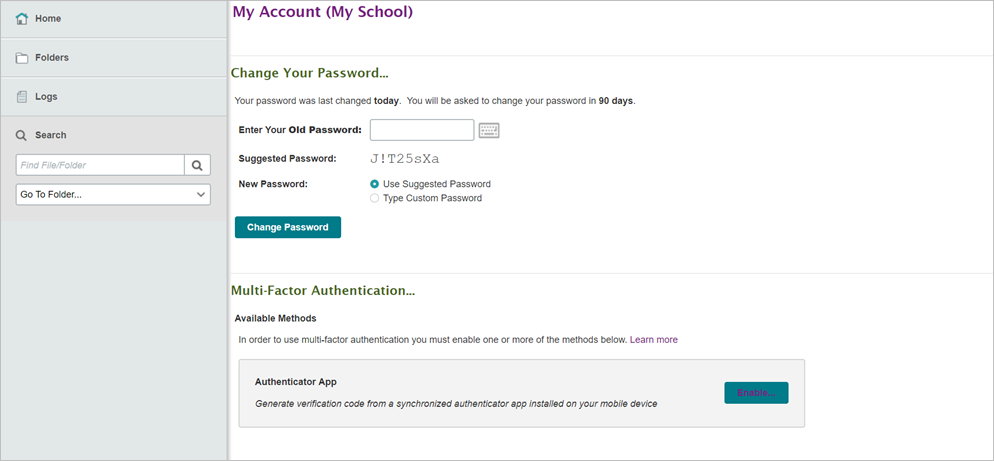
3. The first time you log into your secure FTP account, you will need to do some minor setup. You will be prompted to change your password. Passwords must adhere to the following minimum requirements:
- Be at least 13 characters in length
- Not contain a “dictionary word”
- Contain both upper- and lower-case letters
- Contain at least one alphabetical and one numerical character
- Contain at least one special character (such as $ or !)
- Not resemble your username
- Not contain sequential or repeating letters or numbers (AAA or ABC, 111 or 123)
- Passwords will expire every 90 days
4. Whenever you log on to your secure FTP account, you can click the keyboard icons next to the username and password fields to open a clickable keyboard that can be used to enter your authentication information.
- Username is NOT case-sensitive
- Password IS case-sensitive
- Your account will be locked if you try to log in too many times with an incorrect password (see Troubleshooting section for more information)
5. Click “Sign On“
Multi-Factor Authentication
You can enable multi-factor authentication on your FTP account via a synchronized authenticator application on your smart device, such as Google Authenticator. Follow the steps below to enable multi-factor authentication.
1. Download an authenticator application from your services application store.
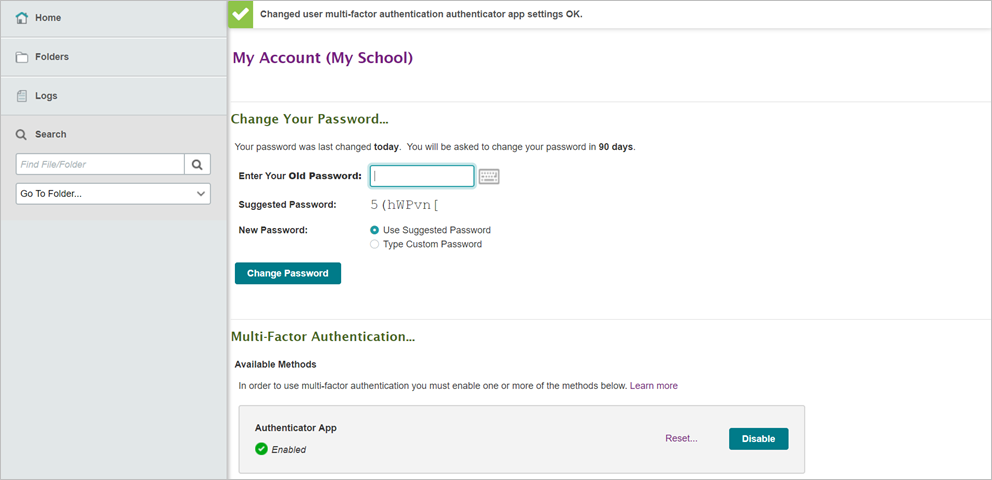
2. Navigate to “My Account.”
3. Click “Enable” on the Authenticator App tab.
4. Use the scanner in the application to scan the supplied QR code.
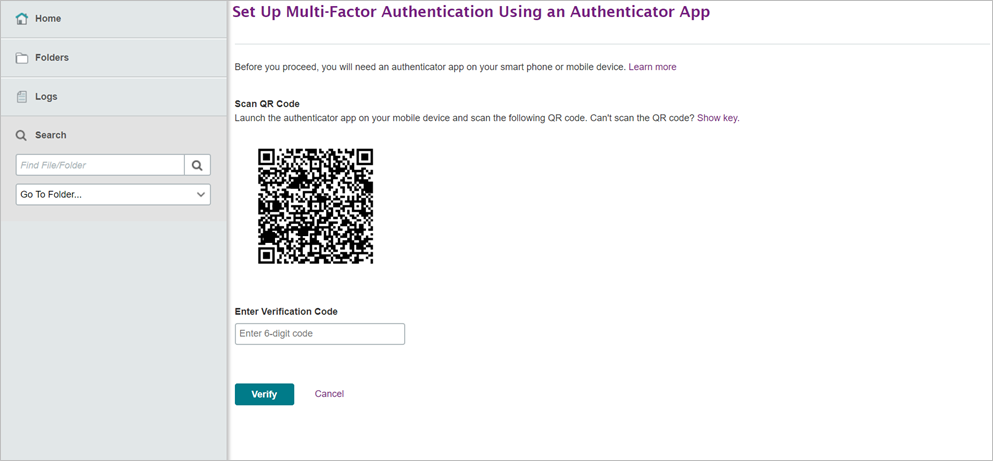
5. Verify that the six-digit code provided is the same on all users’ devices. Enter the six-digit verification code provided.
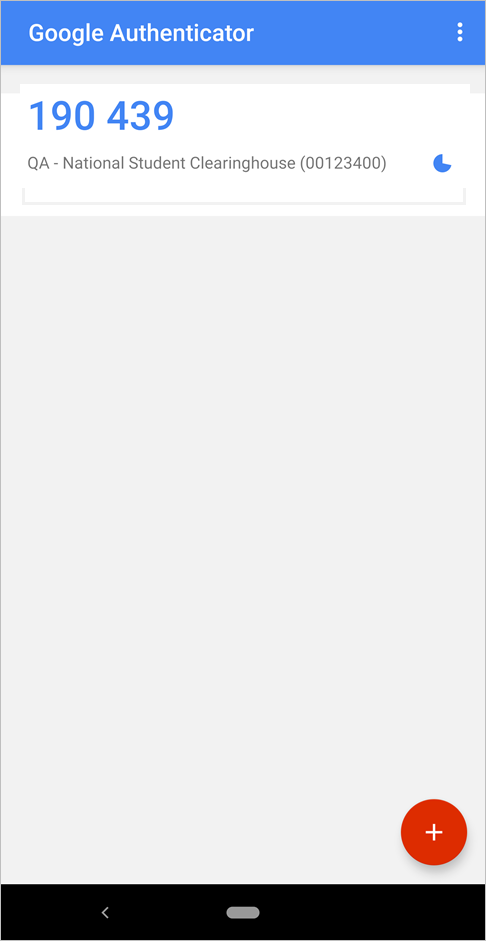
6. Multi-factor authentication is now enabled.
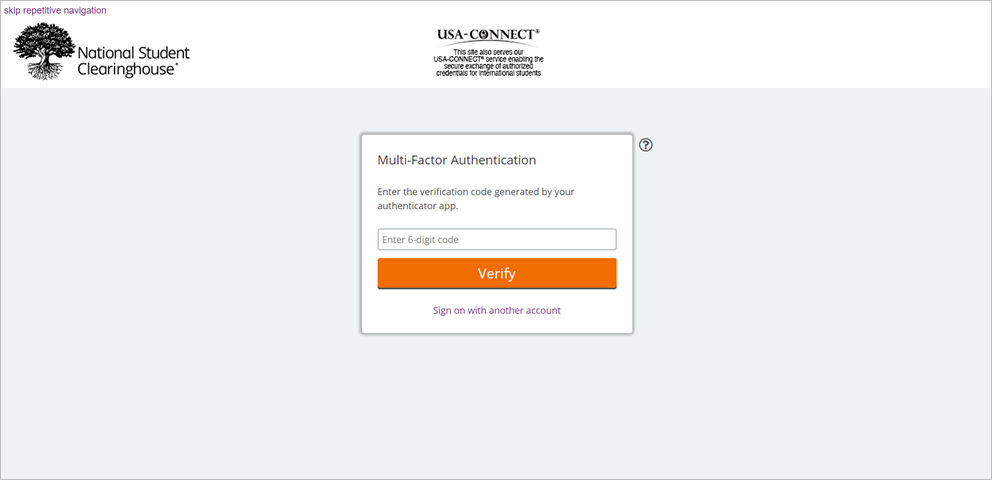
After entering your password to log in, you will be prompted for a six-digit verification code generated within the authenticator application. Enter the six-digit code provided to log in to your account.