
As part of our continued effort to ensure enrollment reporting data integrity and timely data flow, the National Student Clearinghouse is deploying an enhancement to introduce a new Acknowledgement for Warning Codes 258, 260 and 264 on the Error Resolution Report on the Web (ERW).
What Is the New WC258, 260, and 264 Acknowledgement?
After working on your institution’s Error Resolution report, select the ‘I Am Done’ button. If any records with Warning Code 258, 260, or 264 remain, a ‘Warning Alert’ pop-up window will require your acknowledgement of them. See image below:
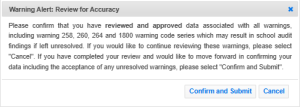
The pop-up window presents the following choices:
- Confirm and Submit: If you click ‘Confirm and Submit,’ a pop-up window appears asking you to confirm that updates to the enrollment submission are complete. See image below.
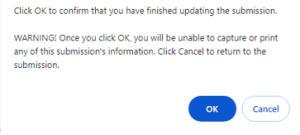
If the updates are complete, click ‘OK’ to approve the error report and return the file to the Clearinghouse. Clicking ‘OK’ confirms that no further review or correction is needed and that the records will be processed as is. To continue reviewing the records, click ‘Cancel.’
- Cancel: If you click ‘Cancel’ or the ‘X’ in the top right corner of the window, the pop-up will close. You can then select any remaining records to continue your review and make corrections as needed
Why Is this Acknowledgment Being Introduced?
The WC258, 260, and 264 Acknowledgement:
- Ensures institutions review records with WC258, 260, and/or 264 and confirm that the information is accurate and requires no further correction.
- Streamlines communication by minimizing follow-up on WC258, 260, and/or 264 after your institution completes corrections for the submission.
How Is Compliance Impacted by Accurate Reporting on Records with Warning Codes 258, 260, and/or 264?
For compliance reporting purposes, all errors shown in red and warnings shown in black must be reviewed and corrected as needed. Errors in red must be corrected before the Error Resolution Report is returned to the Clearinghouse and the enrollment submission processed. Warnings in black may be accepted as is if the record reflects current and accurate data as determined by your institution. If your institution determines that incorrect data was reported, you should update it via the Error Resolution Report to ensure data accuracy.
Note: For students continuously enrolled in the same program, the Campus-Level Status Start Date and Program Status Effective Date typically match when the student’s enrollment status increases or decreases and there is no change in the program.
Warning Code 258: Status Increase During Term, Start Date Is Blank
- Why the Warning Occurs: The student’s Enrollment Status increased from the previously reported status for the same term, but a Status Start Date was not provided. At the Campus-Level, a Status Start Date is not required when a student increases to a higher status during the term. However, if no date is provided, the Status Start Date defaults to the Term Begin Date.
- Warning Resolution: If a different change date should be reported, provide the date the student’s status changed. If the date should default to the beginning of the term, no changes are needed. Select the “+” icon to the left of the student record and follow these steps:
- Ensure that the accurate Program Status Effective Date is reported for each program listed.
- If the Campus Status Start date conflicts with the Program Status Effective Date for the same enrollment status, determine whether either date is incorrect and update as needed.
- If the Program Status Effective Date should be applied to the Campus Status Start date for a large number of records, contact the Analyst assigned to your file.
Warning Code 260: Status Increase During Term, Start Date Present
- Why the Warning Occurs: The student’s Enrollment Status increased from the previously reported status for the same term, and a Status Start Date was provided.
- Warning Resolution: Although a Status Start Date (SSD) is not required in this instance, a date was provided. If this date is accurate, no action is needed. If you want the increase in status to default to the beginning of the term, remove the SSD. Select the “+” icon to the left of the student record and follow these steps:
-
- Ensure that the accurate Program Status Effective Date is reported for each program listed.
-
- If the Campus Status Start date conflicts with the Program Status Effective Date for the same enrollment status, determine if either date is incorrect and update as needed.
-
- If the Program Status Effective Date should be applied to the Campus Status Start date for a large number of records, contact the Analyst assigned to your file.
Warning Code 264: Status (F, Q, H, L, A) Start Date Is Outside of Term
- Why the Warning Occurs: The incoming Status Start Date falls outside the reported term because it is before the Term Begin Date.For continuously enrolled students whose enrollment status has not changed over several terms, the Status Start Date for an active enrollment status ─ Full-Time (F), Three-Quarter Time (Q), Half-Time (H), Less than Half-Time (L), or Approved Leave of Absence (A) ─ may be before the Term Begin Date. In this case, the older Status Start Date may be accurate.
- Warning Resolution: Select the “+” icon to the left of the student record to review the Campus-Level and Program-Level data fields.
- If the incoming Status Start Date is correct, no action is required. The record will remain on the Error Resolution Report with Warning Code 264.
- If the incoming Status Start Date is incorrect, update it the correct date within the reported term dates. Review all programs to ensure that the Program Enrollment Status and Program Status Effective Date are accurate, and make updates only as needed.
Approved Leave of Absence records with Warning Code 264:
If the Status Start Date for a student with an Enrollment Status of Leave of Absence is more than 180 days and the student has not returned, update the Enrollment Status to Withdrawn. NSLDS will not accept a record with a Leave of Absence status if the Status Start Date is more than 180 days old.
- Warning Resolution: Select the “+” icon to the left of the student record to review the Campus-Level and Program-Level data fields.
- If your institution is not required to take attendance, use the date the student began the Leave of Absence as the Status Start Date for the Withdrawn status.
- If your institution is required to take attendance, use the student’s last date of attendance as the Status Start Date for the Withdrawn status.
- If the Status Start Date is correct and within the 180-day limit for a Leave of Absence, no action is required.
Refer to the Error Resolution Report Guide for detailed information on why warnings occur and how to resolve and prevent them.
Who Should I Contact with Questions?
Contact the Data Operations Analyst assigned to your enrollment file. Their direct contact information is available on the summary screen within the Clearinghouse Error Resolution on the Web application.