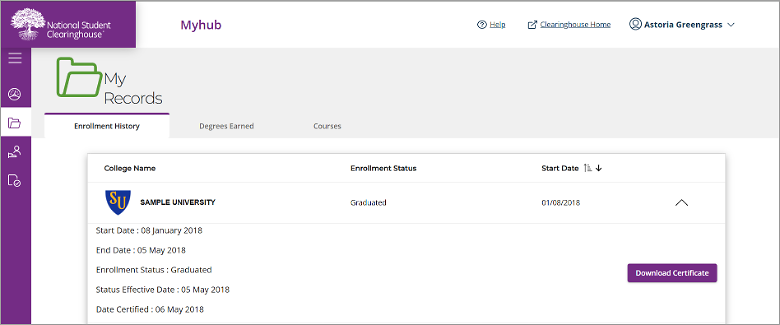
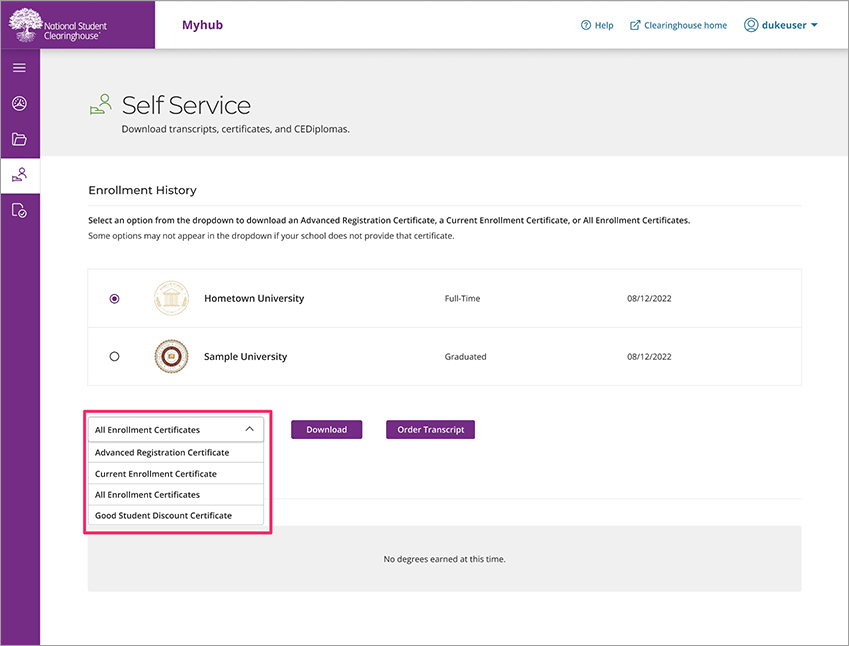
The enrollment certificates can be downloaded from the Self Service page. You can get there by either clicking on the “Self Service” card on your Myhub dashboard or by clicking the “Enrollment History” card. Once on the enrollment history tab, click the dropdown arrow and “Download Enrollment Certificate.”
Myhub offers four types of certificates: 1) Advanced Registration, 2) Current Enrollment, 3) All Enrollment, and 4) Good Student Discount
- Advanced Registration Certificate: Only available if the institution has chosen to provide this optional certificate to students. Prior to the term start date, the Advanced Registration Certificate option may show enrollment data for the coming term that is not reflected on the Current Enrollment Certificate.
- Current Enrollment Certificate: Verifies your current enrollment status.
- All Enrollment Certificate: Verifies your enrollment history. (This certificate does not contain your advance registration data.)
- Good Student Discount Certificate: Indicates an individual student’s eligibility for “good student” discounts based on academic performance (as determined by the school) along with a notification that the student is currently enrolled. The “Good Student Discount” certificate displays a message verifying that the student is currently enrolled, in good standing, and eligible for a good student discount as defined by the school, along with the associated term start and end date, enrollment status, status effective date, and certification date.
If you have any questions regarding the data reflected in your certificate, please contact your college.